
Automate Transactional Emails in Shopify Flow with Microsoft 365
Overview
Flow Transactional Email lets you send emails through a connected Microsoft 365 account instead of an SMTP server. In this workflow, you will connect Microsoft 365 from Email senders, send a test email to confirm the connection, and then use that sender inside a Shopify Flow.
You will configure this in two places: Flow Transactional Email for the sender connection, and Shopify Flow for the automation.
Before you start
You need access to the Flow Transactional Email app in Shopify.
You need a Microsoft 365 or Outlook mailbox you can authorize.
You should already have an email template available in the app, because the Send Transactional Email action uses a saved template.
Video Guide
Connect your Microsoft 365 account
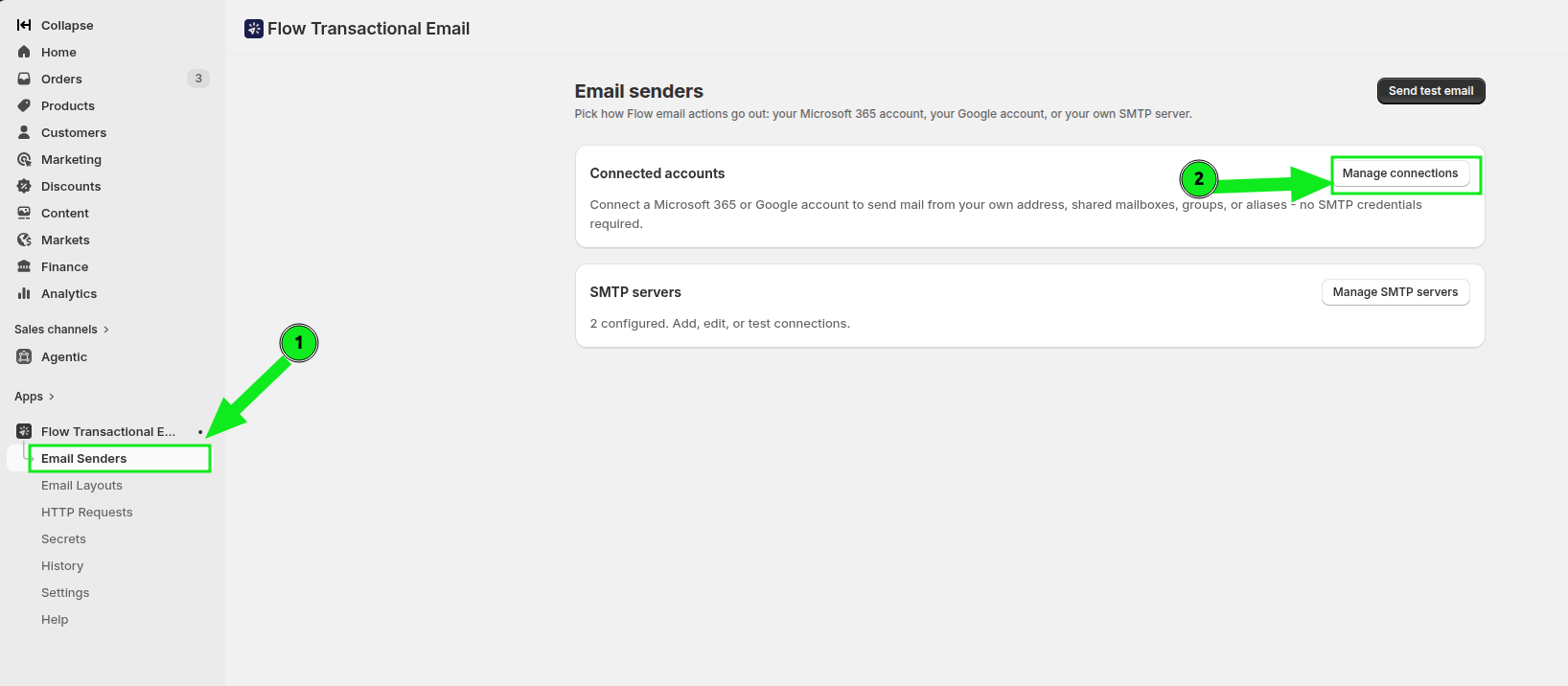
In the Shopify admin, open Apps > Flow Transactional Email, then click Email Senders. On the Email senders page, click Manage connections in the Connected accounts section.
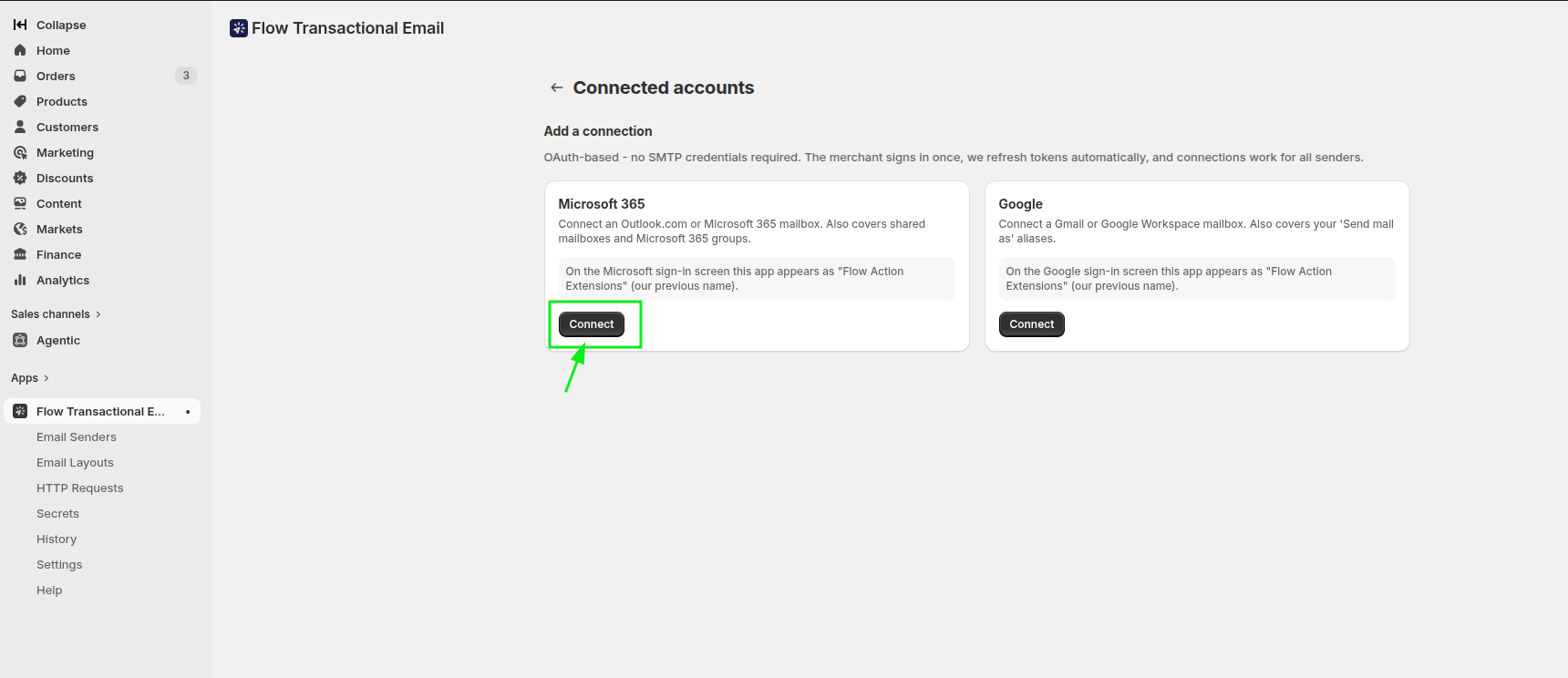
On the Connected accounts page, find Microsoft 365 and click Connect.
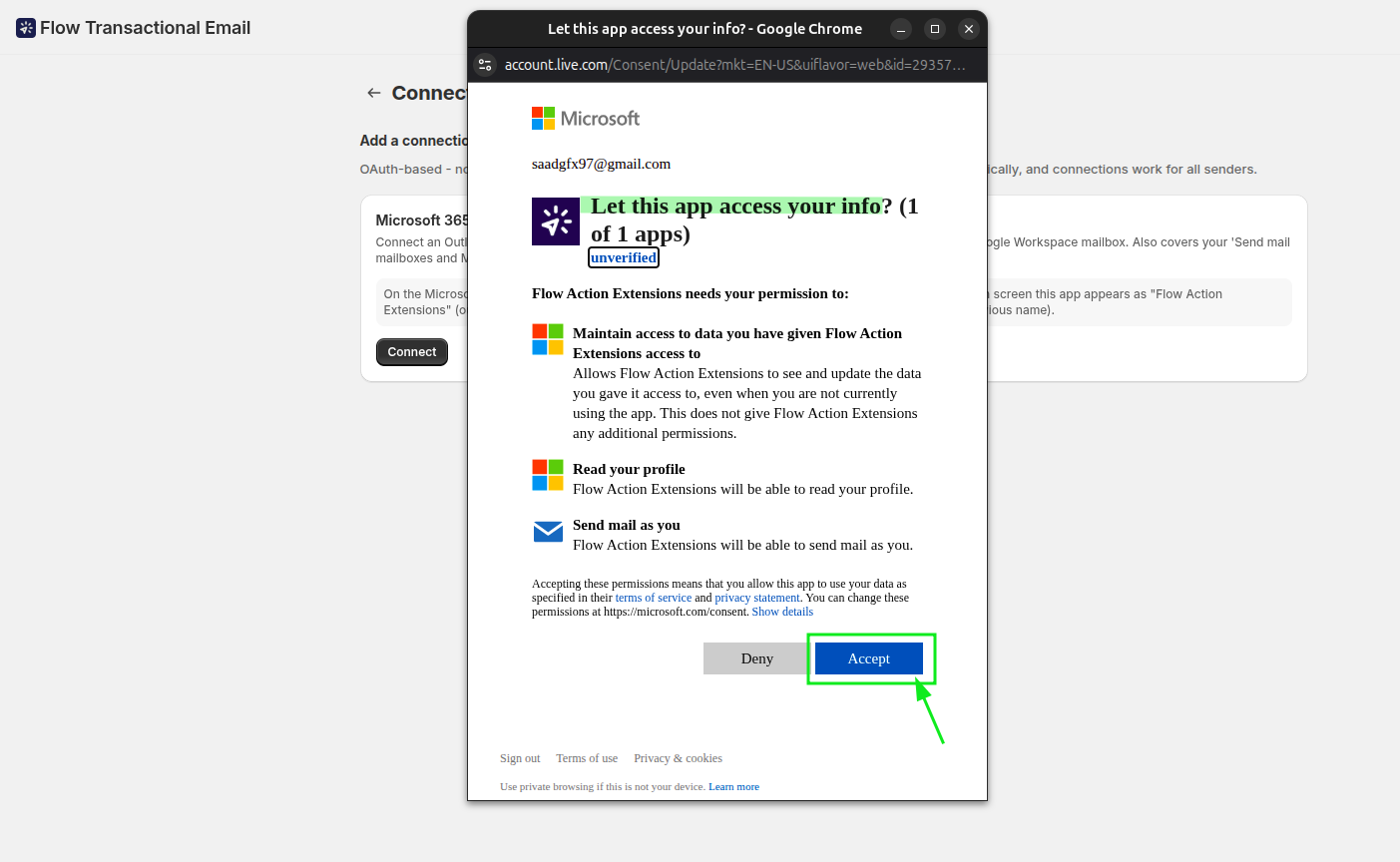
A Microsoft authorization window opens. Sign in to the Microsoft account you want to use and grant access to complete the connection.
On the Microsoft consent screen, the app may appear as Flow Action Extensions. This is expected.
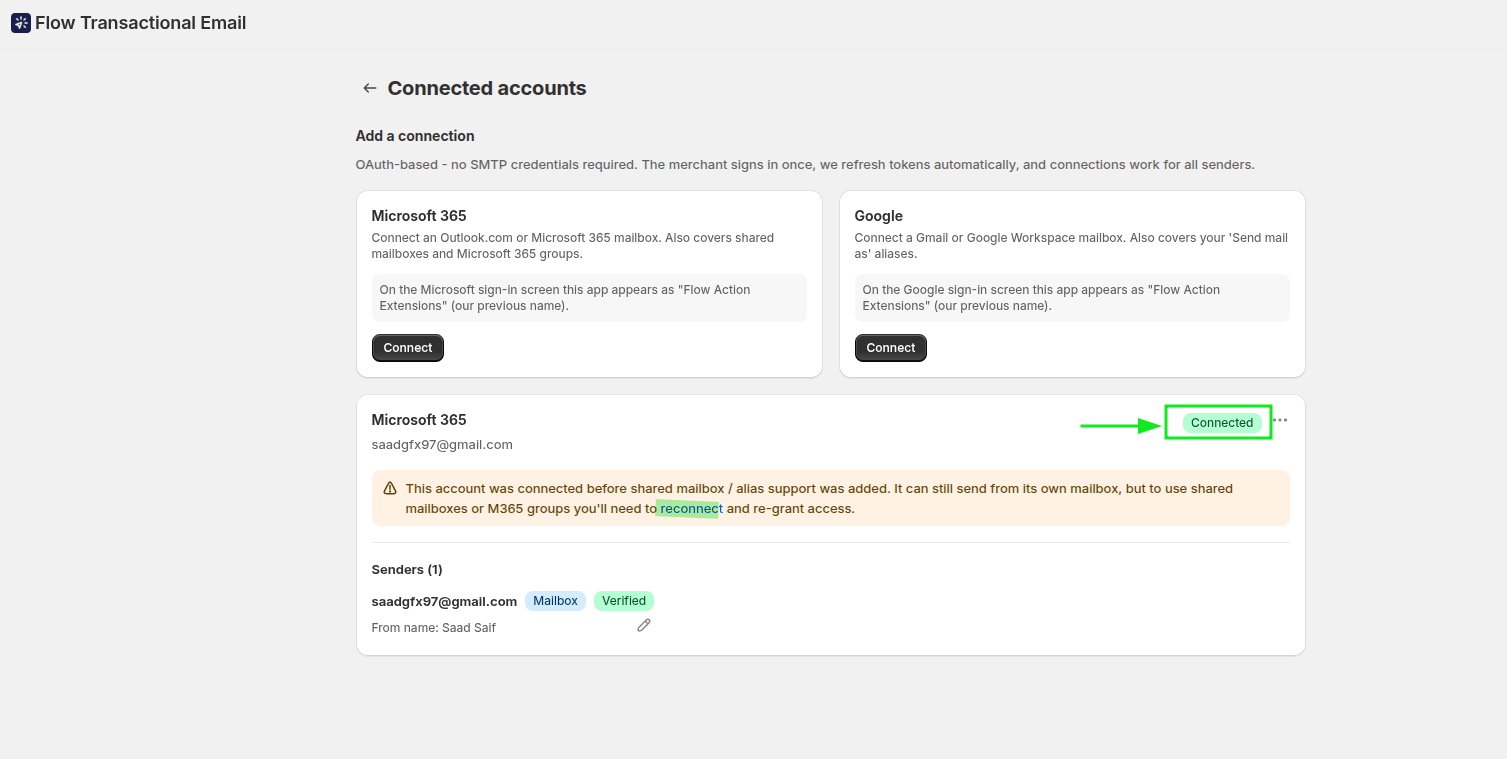
After authorization, you return to Connected accounts. The Microsoft 365 connection shows a Connected status, and the sender appears under Senders.
Send a test email from Email senders
Before you use the connection in a Flow, send a test message to make sure the mailbox is working correctly.
Go back to Email senders and click Send test email.

In the dialog, select your connected Microsoft 365 sender in the Sender field, then enter the destination address in Recipient email.
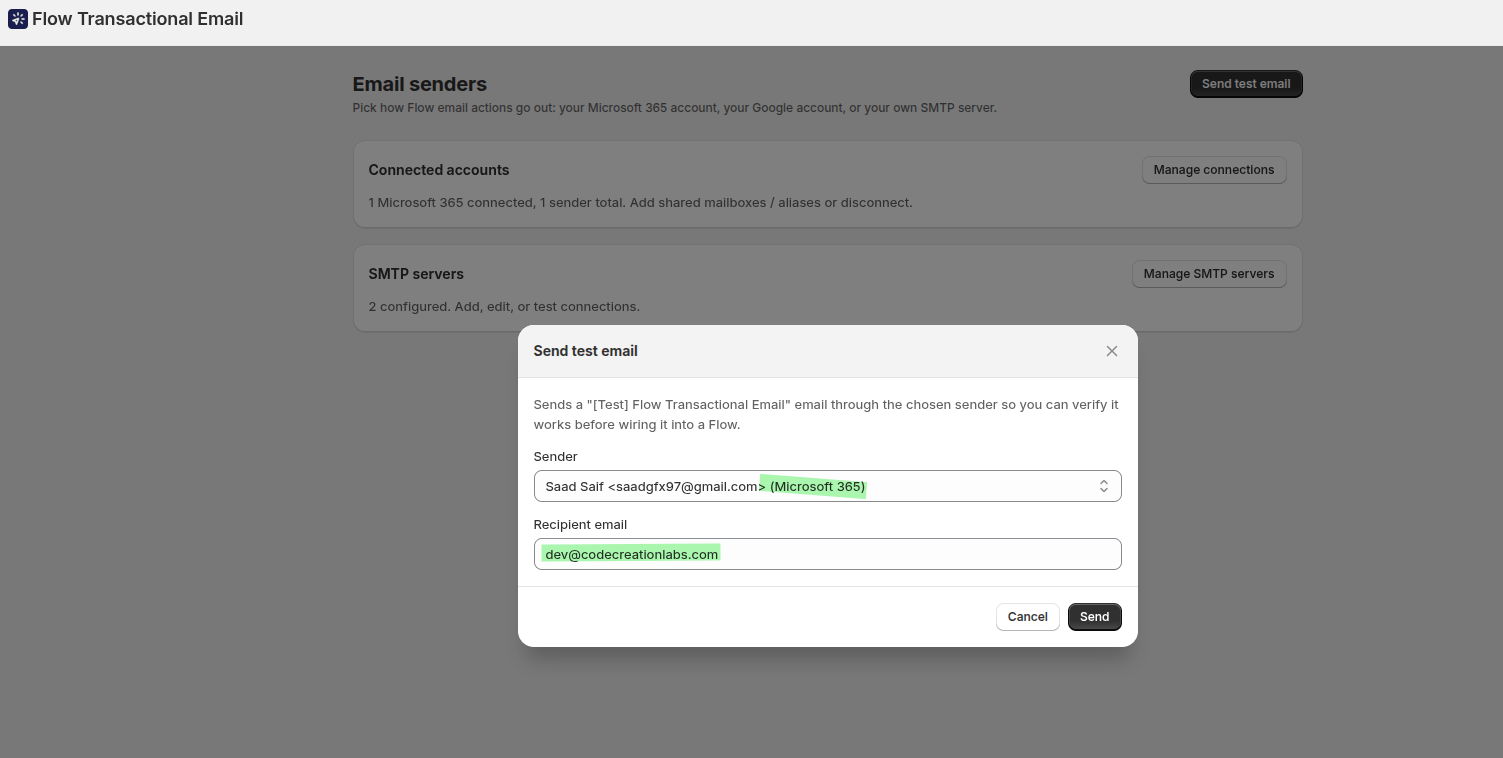
Click Send, then check the recipient inbox. If the message arrives, the Microsoft 365 connection is ready to use in Shopify Flow.
Using Send test email first is the fastest way to confirm that the mailbox, permissions, and sender configuration are all working before you build a Flow.
Send emails through Microsoft 365 in Shopify Flow
Once the account is connected, you can use it in the Send Transactional Email action inside Shopify Flow.
In Shopify Flow, create a new workflow and choose the trigger Customer Tags Added.
If you only want to send the email for specific tags, add a condition such as Added tags is at least one of vip.

Add the Send Transactional Email action to the workflow.
In the action configuration, set To Email(s) to the customer email variable so the message is sent to the customer who triggered the workflow.

Scroll to the template section in the action and click Open Config.
This opens the email configuration screen where you choose the sender and template used by the action.
In Email action, select your connected Microsoft 365 account in Send from.
Then choose the template you want in the Template dropdown, click Save, and then click Exit.

Save the workflow and turn it on in Shopify Flow.
Add the chosen tag to a customer, such as VIP. When the workflow runs, the customer receives the email through your connected Microsoft 365 account.
What this workflow does
With this setup, Shopify Flow watches for customer tag changes, then passes the customer data into Send Transactional Email. That action uses your selected template and sends the email through the connected Microsoft 365 sender you chose in Send from.
If you are using a tag-based workflow, make sure the tag value in your condition exactly matches the tag you add to the customer.
Configure the email template
The content of the outgoing message comes from the template selected in the Template field inside the email action configuration.
For full guidance on configuring the email content, variables, and template behavior, see Introduction of Flow Transactional Email.
Troubleshooting
Return to the Send Transactional Email action, click Open Config, and confirm the sender appears in the Send from dropdown. If needed, refresh the Flow editor and reopen the action.
First, send another message from Email senders using Send test email. Confirm that the correct Sender and Recipient email were selected. If the Microsoft account was connected earlier and needs new permissions, reconnect the account from Connected accounts.
Check that the workflow is turned on, the trigger is Customer Tags Added, and the condition matches the tag you actually applied to the customer.