
Use Google to send transactional emails in Shopify Flow
Overview
You can use Flow Transactional Email to send messages through a connected Google account instead of an SMTP server. In this workflow, you will:
connect Google from Email senders
send a test email to confirm the connection works
create a Shopify Flow that uses the Send Transactional Email action
send an email when a customer gets the
viptag
This guide uses the real app screens and labels shown in Flow Transactional Email, including Email senders, Manage connections, Send test email, and the Shopify Flow action Send Transactional Email.
Before you start
Make sure you have installed Flow Transactional Email in Shopify.
Create the email template you want to send before building the Flow.
Have access to the Google account you want to use as the sender.
If you want a refresher on how email templates work, see Introduction of Flow Transactional Email.
Video Guide
Connect your Google account
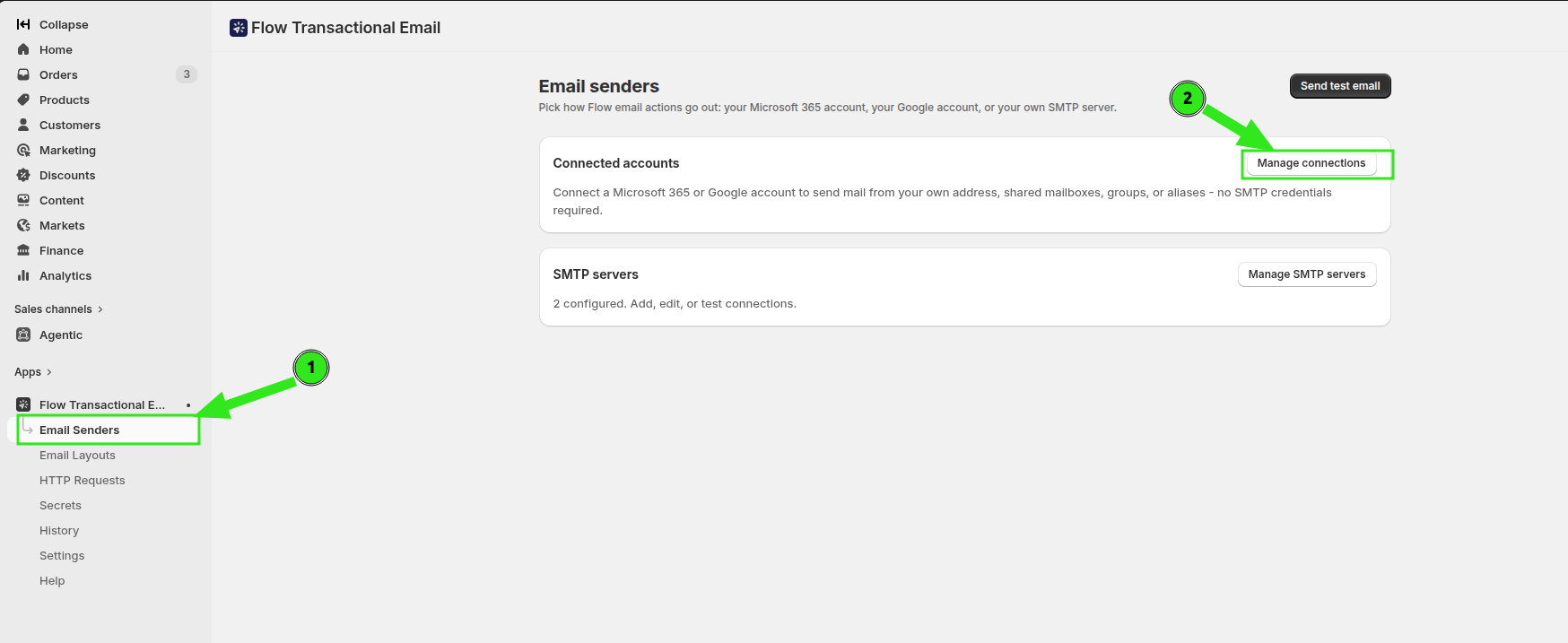
In Shopify admin, open Apps and select Flow Transactional Email. In the app navigation, click Email senders. On the Email senders page, click Manage connections in the Connected accounts section.
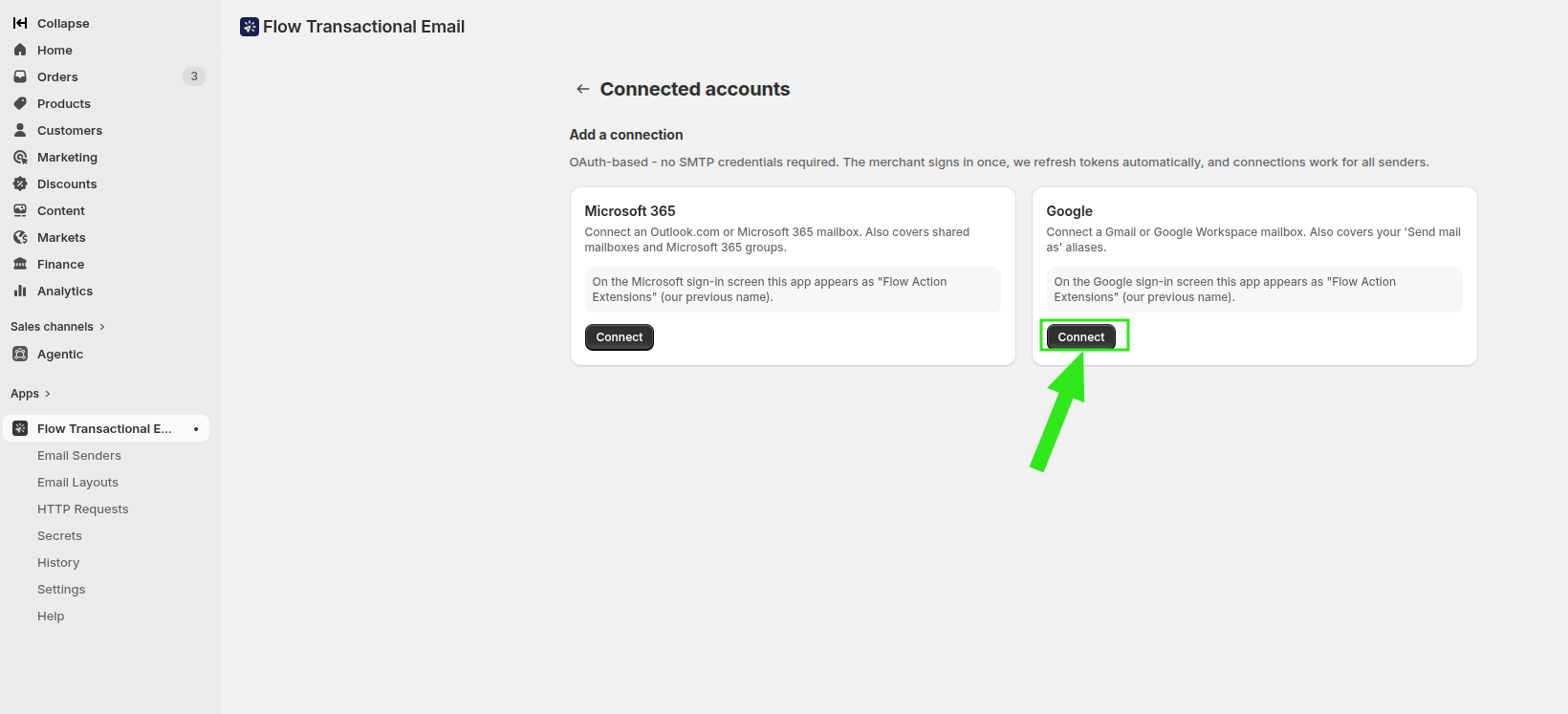
On the Connected accounts page, find the Google card under Add a connection and click Connect.
A Google sign-in window opens. Sign in to the Google account you want to use, review the permissions, then approve access to finish the connection.

After you return to the app, the Google connection appears in Connected accounts with a Connected badge. You can also see available senders listed under that account.

The connected Google account can be used as the sender in the app's email actions. The app also shows sender details under the connected account after setup.
Send a test email
Before adding the sender to Shopify Flow, send a test message from the app to confirm delivery.
Go back to Email senders and click Send test email.

In the Send test email dialog, select your connected Google sender in the Sender dropdown. Enter the destination address in Recipient email, then click Send.

Check the recipient inbox. The message should arrive from the connected Google account.
If the test email arrives successfully, you can use the same connected sender in Shopify Flow with confidence.
Create the Shopify Flow
Now set up a workflow that sends email when a customer receives the vip tag.
Open Shopify Flow and create a new workflow.
Select the trigger Customer Tags Added. This trigger starts when one or more tags are added to a customer.

Add a condition so the workflow continues only when the added tags include vip.
For example, the condition can check that Added tags is at least one of vip.
On the True branch, add the action Send Transactional Email.
In To Email(s), use the customer email variable so the message goes to the tagged customer.
{{customer.defaultEmailAddress.emailAddress}}The action panel in Shopify Flow describes this action as sending a transactional email via SMTP, Microsoft 365, or Google using a pre-configured sender and email template.
Open the action configuration and choose your connected Google account in Send from. Then choose the template you want in Template. Click Save, then Exit to return to the workflow.

Save the Shopify Flow, then turn it on.
Test the automation
Add the
viptag to a customer in Shopify.Wait for the workflow to run.
Check the customer's inbox.
If everything is configured correctly, the customer receives the email through your connected Google account.
In your example setup, the workflow uses the Customer Tags Added trigger, checks for the vip tag, and then runs Send Transactional Email with the connected Google sender.
What to check if email is not sent
Go back to Email senders and confirm the account shows as Connected under Connected accounts.
Make sure the To Email(s) field uses the customer email variable from Shopify Flow, not a hard-coded address, unless you are testing.
Confirm the workflow is turned on and that the customer actually received the vip tag. Also verify your condition matches the tag exactly.
Use Send test email from the Email senders page before testing the full automation.
Related guides
Learn the core features of Flow Transactional Email and how the app works with Shopify Flow.
See the Google email sender workflow in the OAuth Email provider section.